
AR.Assist Infrastructure Wi-Fi Enabling Your AR.Drone Made Easy
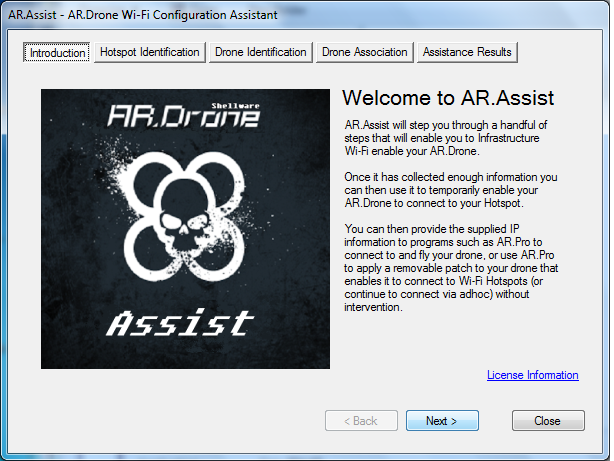
AR.Assist is an extremely easy to use Windows Wizard that steps you through the process of temporarily Infrastructure Wi-Fi enabling your AR.Drone. You can use AR.Assist on demand to configure your AR.Drone for Infrastructure mode on an as needed basis, or you can use AR.Assist as a jumpstart to apply the AR.Pro Infrastructure Patch to your drone.
There is also a manual installation procedure available here for those having problems with AR.Assist or wishing to do the work themselves.
STEP 1 — Review all instructions and prepare for the procedure
STEP 2 – Scan for and Select the Infrastructure WAP/Hotspot you wish to connect your drone to
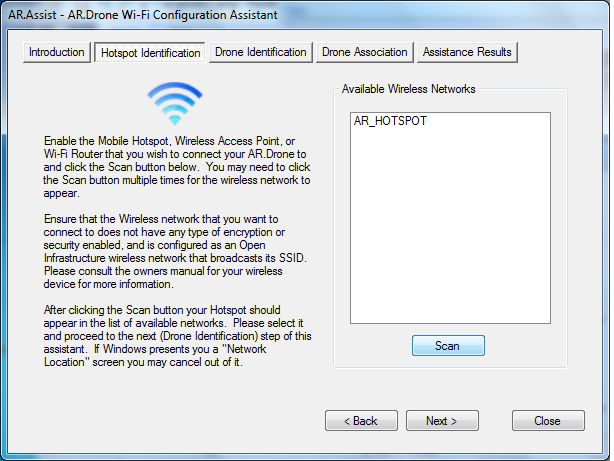
STEP 3 – Power up your AR.Drone, scan for, and select its adhoc network
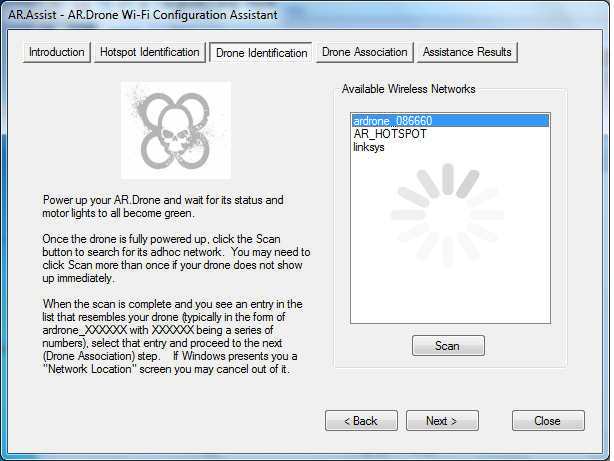
STEP 4 – Associate your drone to the Infrastructure WAP/Hotspot previously selected
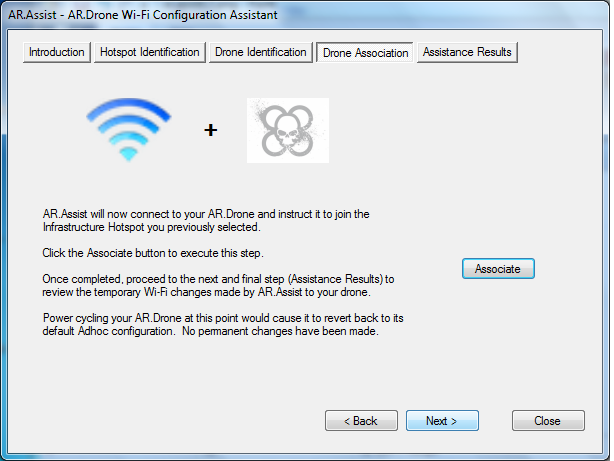
STEP 5 – Review changes, open your favorite AR.Drone client and go fly!
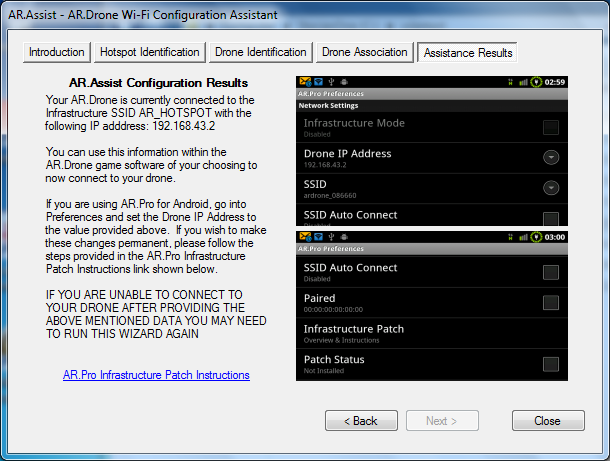
STEP 6 – OPTIONAL – Making your changes permanent in AR.Pro
ADVISORY: WHILE NOT REQUIRED IT IS STRONGLY RECOMMENDED THAT YOU BE ON FIRMWARE 1.4.7 OR 1.5.1 PRIOR TO INFRASTRUCTURE PATCHING YOUR DRONE.
THERE HAVE ALSO BEEN A HANDFUL OF REPORTS ABOUT AR.PRO REFUSING TO JOIN AN INFRASTRUCTURE NETWORK AUTOMATICALLY AFTER APPLYING THE PATCH. TO SOLVE THIS PROBLEM, FOLLOW THE PROCEDURE ABOVE TO CONNECT TO YOUR DRONE, OPEN AR.PRO, CONNECT, GO INTO PREFERENCES, UNINSTALL THE PATCH, AND IMMEDIATELY RE-INSTALL IT (WIHOUT EXITING PREFERENCES OR REBOOTING YOUR DRONE).
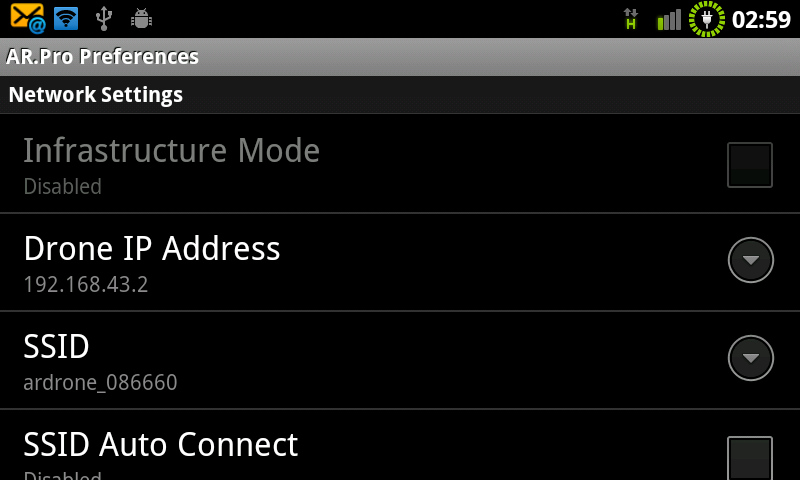
- Launch AR.Pro for Android
- Tap Menu and go into Preferences
- Scroll down to Network Settings
- Specify the IP Address provided by AR.Assist
- Exit Preferences
- Tap Menu, and Connect to your AR.Drone If you are unable to connect it is likely something went wrong within the AR.Assist procedure — Start over at step 1.
- Tap Menu, and go back into Preferences
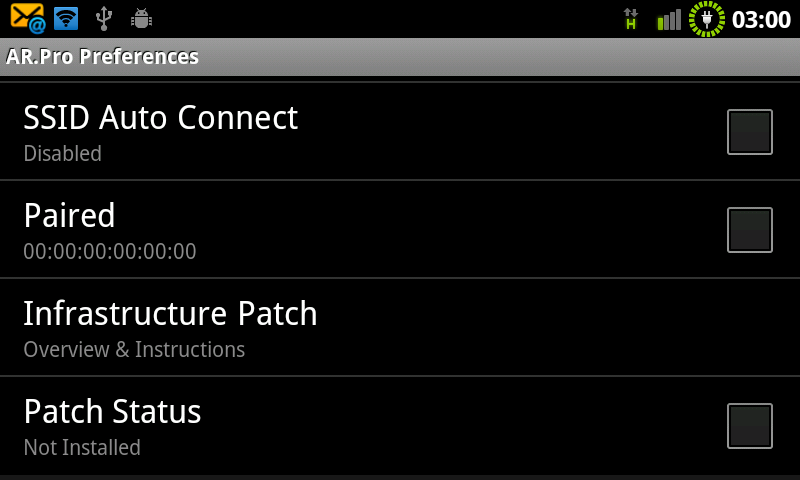
- Tap Patch status, accept responsibility for any unforeseen problems that may result from applying the patch***
- Now that the patch is applied Enable “Infrastructure Mode”
- Select “Drone IP Address” and rekey the IP Address provided by AR.Assist
- Select SSID (not SSID Auto Connect) and provide the SSiD provided by AR.Assist
- Exit out of Preferences
- Close AR.Pro
- Reboot your AR.Drone
- Reopen AR.Pro
- Go fly!
If you have any questions or run into any problems feel free to contact the author using the Contact link at the top of this page.
You may download AR.Assist HERE after reading and accepting the below ***DISCLAIMER***
*** Shell Shrader, DBA Shellware cannot and will not take any legal responsibility for any changes that you apply to your AR.Drone. You do so at your own risk. While every attempt has been made to make this a perfect solution, there is always a risk associated with configuration changes of this nature and we cannot assume any such liability. Additionally, making modifications of this nature to your AR.Drone could render your warranty with Parrot null and void. You’ve been warned.
Comments: 36
Hi,
The AR.Assist only contains one file with no extension. No EXE or MSI appears, only one file called AR.Assist.
…
Download link has been updated to utilize a click once manifest. I’ll likely have an update out this evening and th …
Hi,
Thanks for quick reply! im gonna test it in a few hours when i get out of office. Meantime, i would ask you f …
If you follow the optional steps in AR.Pro after performing a temporary association using AR.Assist those changes th …
Hi,
it works perfect! and as you told, I tryed v1.5.1 and certainly it has some bugs, as cant change camera view …
Working on video recording. Had hoped to have it done this past weekend but I ran into a number of things completed …
ok nice to know it! good job keep it up!
Thanks.
Hi,
I just bought an AR.Drone and went ahead and purchased AR.Pro (why mess around if it’s the best/only one out th …
Hi Shawn,
I’m going to guess that your problem is one of three things.
You have more than one active network …
Hi Shell,
Thanks a bunch for the workaround! I followed the steps and it worked perfectly!
Now I just have to wo …
Hi Shell,
I hope you could get video recording soon!.
Some things i would like to explain:
– I noticed that …
Hi Shell:
I ran into a similar problem as Shawn above. However I don’t have a Galaxy so I was using my Linksys N …
Hi G,
Does your phone have a WiFi Hotspot? Most android phones do. If not you still have options — connecting …
Hi. I’ve been able to fly the drone, but only with a weird thing used by some other app, but I paid for yours and I’ …
I’ll post a manual procedure you can follow to get your drone infrastructure enabled without AR.Assist. It might ta …
Thanks a whole lot. Your app seems to pretty much cover everything. Get that video recording worked out, and there w …
In regards to priorities It is more likely that I’ll move on to an Augmented Reality single player game rather than …
Hello shell. I was wondering if you knew if any conflicts would arise from the wpa_supplicant fix that was released …
Christian,
Your TB is likely using a subnet/network other than the one provided by the Galaxy’s hotspot.
Try t …
I get the ip of 192.168.5.100. I put it in interface ath0. It tries to pass but then I lose connection in the tel …
No you do not need the full version for this operation.
Try using the address 192.168.5.2
This should get yo …
This time I did not lose connection to the telnet. I also changed the SSID for the drone in the network preference t …
Another thing you can try is to get both your drone and your PC on the phone’s network at the same time. Then you s …
Now would I do that by first telnetting and running your command then connecting from my PC to my AR_HOTSPOT then do …
Precisely.
Well I connected to my phone after I did the telnet and ran the command. I could ping my phone at 192.168.5.2 but c …
I have compiled a manual installation procedure for those having problems with AR.Assist or wishing to do the work t …
Shell,
Thanks for all the work you have done and continue to do! I was able to connect to the drone using ARassi …
Hey there,
I’ve tried all of the various ways and I seem to be stuck with no joy.
Have you had luck or seen a …
can i use my droid 1 the first motorolia droid made to fly the drone
I suspect that the original Moto Droid does not have the perquisite hardware to enable an enjoyable experience with …
Hi Shell,
1st: Great job!!! Admire what you are doing (AR.Pro, AR.Assist, videos etc.) for the Android community …
Hi Werner,
You may want to try the manual configuration guide as a number of people have reported problems gettin …
I am using AR.Assist to connect my Sprint HTC Evo to AR but I am having a problem connect to the phone. I click on …
Hello
Is AR Assist valid/compatible with AR DRONE v2 ?
I have not tested AR.Assist on v1 drones with 1.7.4 or greater firmware and no testing has been performed on v2 dron …
Comments are closed.